
Find your generated links
Open Account -> Generated pages to find the copy links created through your Brixies account.
You can reopen an active link without searching for it in your assistant’s conversation.
This page lists Brixies copy links. It does not list pages imported directly into your WordPress site or JSON delivered in a chat.
What each entry shows
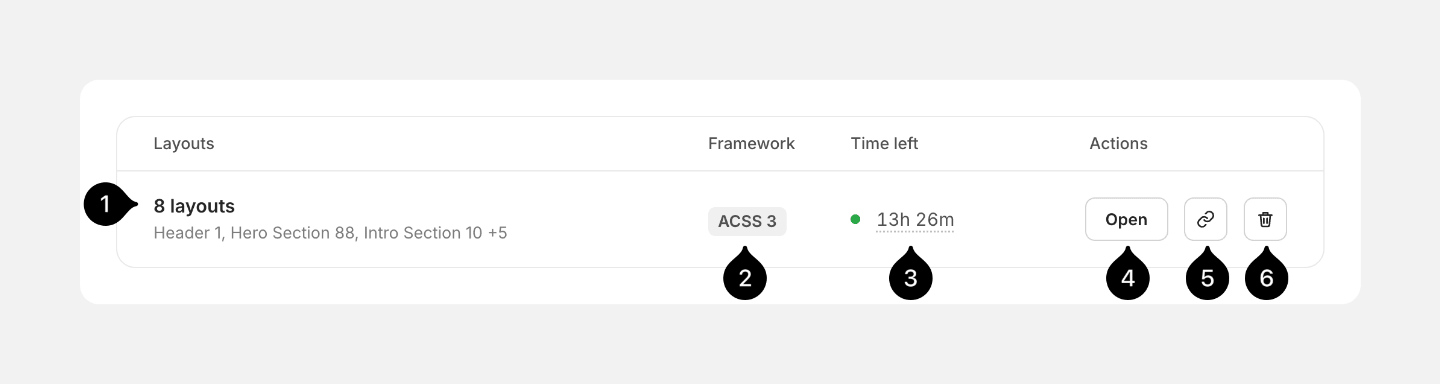
| # | Item | What it means |
|---|---|---|
| 1 | Layouts | The number of layouts included and their names. |
| 2 | Framework | The framework used for the selection, including the ACSS version when applicable. |
| 3 | Time left | How long the link remains available. |
| 4 | Open | Opens the link page where you can copy the layouts. |
| 5 | Copy link | Copies the link’s URL, not the layout data. |
| 6 | Delete | Removes the link and stops it from working. |
Copy link and Copy all are different. Copy link copies the page address. Copy all, on the opened link page, copies the layout data for Bricks.
Open a link and copy the layouts
- Find the active link you want to use.
- Click Open.
- Review the layouts and framework shown.
- Click Copy all.
- Wait for the copy confirmation.
- Open your destination page in Bricks and paste the layouts.
For the full workflow, see Generate a copy link.
Access your links
Sign in with the Brixies account associated with the API key that generated the link.
You also need an active annual plan or lifetime access (LTD) to use the protected layout content.
If you open a link in another browser or on another computer, sign in to the same Brixies account.
Understand link expiry
Generated links stay active for 24 hours from creation unless you delete them earlier.
Opening the link or copying its layouts does not extend its expiry time.
Check the time remaining before returning to a link later.
Expiry affects the link. It does not remove layouts you have already pasted and saved on your own site.
View expired links
Expand Show recent expired links to review recently expired entries.
This list helps you identify a previous selection. It does not reactivate the links.
If you still need the layouts, return to your assistant and ask for a new copy link.
Example prompt
The Brixies copy link for my approved selection has expired. Generate a new link using the same layouts, framework, order and confirmed BEM names. If any of those details are unavailable, ask me to confirm them before proceeding.
A new link has its own expiry time. It does not restore the original URL.
Delete a link
Delete a link when you no longer need access to that selection through Brixies.
- Find the entry in Generated pages.
- Click its delete icon.
- Review the confirmation and confirm the deletion.
The link stops working after deletion. Anyone opening that URL will no longer be able to use it.
Deleting a link does not delete layouts already pasted into your site or remove a page from WordPress.
If you need the selection again, ask your assistant to generate a new link.
If something does not work
| Problem | What to check |
|---|---|
| You cannot find a link | Check that you are signed in to the account used to generate it. If it expired, check the recent expired links section. |
| The link asks you to sign in | Sign in with the Brixies account that owns it. |
| The link has expired or was deleted | Ask your assistant to generate a new copy link. |
| Access requires a membership | Check your plan in Account -> Billing. |
| You copied a URL instead of layouts | Open the link and use Copy all to copy the layout data. |
| Copying the layouts fails | Read the message shown and wait for a successful copy confirmation before pasting into Bricks. |
If the problem continues, contact support with the error message and the steps that led to it. Do not share your API key.