
Before you start
Make sure you have:
- An assistant connected to Brixies MCP.
- A Brixies account with an active annual plan or lifetime access (LTD).
- A working Bricks Builder MCP connection to your destination site.
- Permission to edit the destination page.
- The framework and plugins required by the selected layouts.
Both MCP connections must be available to the assistant handling your request.
Brixies provides the layouts. Bricks Builder MCP provides the tools to import them into your WordPress site.
To connect your destination site, follow the official Bricks Builder MCP setup guide.
Confirm the destination
Before importing, tell your assistant exactly where the layouts should go.
- Identify the destination site.
- Specify an existing page or ask for a new draft page.
- Explain whether to add layouts to existing content or replace specific sections.
- Ask the assistant to confirm the destination and proposed changes before importing.
For your first import, use a draft page or a staging site so you can review the result before publishing.
Example prompt
Use Brixies MCP to find a hero and services section for a dental clinic using my framework preference. I want to import them through the Bricks Builder MCP into a new draft page on [SITE URL]. Show me the proposed layouts and confirm the destination before making changes. Preserve existing pages and do not publish the new page.
Replace [SITE URL] with your destination site’s address before sending the prompt.
Review the layouts
- Review the proposed selection.
- Confirm the framework and, where applicable, the ACSS version.
- Check the section order.
- Ask for alternatives if needed.
- Approve the layouts you want to import.
Your assistant uses your saved Brixies framework preference unless you explicitly request another framework for the task.
If your preference is All frameworks, choose one framework for the final selection.
The destination site must have the framework and dependencies the layouts require. Selecting a framework in Brixies does not install it on your site.
Confirm class names
Your assistant asks you to confirm the layouts’ BEM block names before preparing the import.
You can keep the original names or choose names that describe their role in your project.
For example:
| Section | Example block name |
|---|---|
| Hero | dental-hero |
| Services | dental-services |
Confirm the names before the import proceeds.
Shared framework utilities should retain their original names. Renaming a layout’s BEM classes does not mean renaming shared classes used elsewhere on your site.
Layouts with custom code
Some layouts include Code elements containing CSS, HTML, JavaScript or PHP.
For direct import, Brixies keeps PHP execution disabled in Code elements. Your assistant does not enable code execution or generate code signatures on your site. CSS, HTML and JavaScript may still be present and require review.
Moving CSS to the section’s BEM global class is optional; it is not required simply because PHP execution is disabled.
Your assistant should explain any compatibility issue that prevents the layout from being imported as intended.
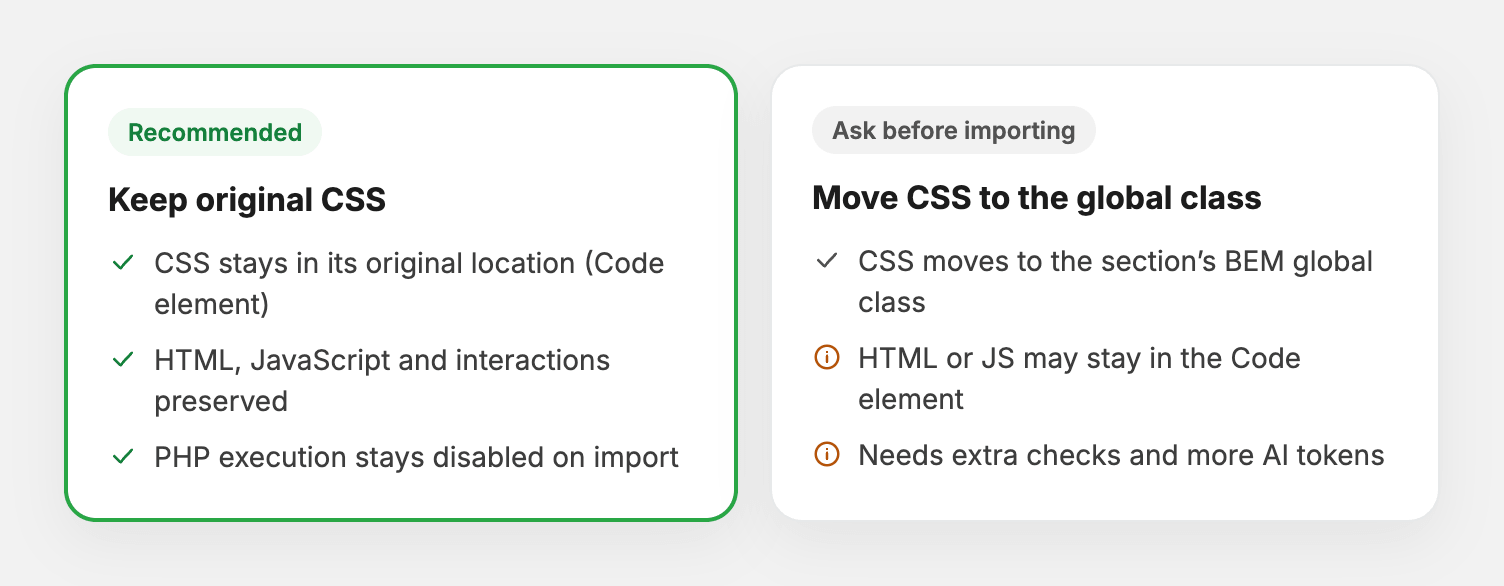
Keep original CSS
This is the recommended default.
The layout’s original CSS remains in its original location. HTML, JavaScript and interactions are preserved as part of the prepared layout, while PHP execution remains disabled.
You do not need to request CSS relocation for a standard import.
Move CSS to the global class
If you prefer to manage the custom CSS through the section’s BEM global class, ask for this before importing.
The assistant must check that the CSS belongs to that section and can be moved without affecting unrelated styles.
For layouts that also contain HTML or JavaScript, that content may need to remain in the Code element.
Moving CSS requires additional checks and may use more AI tokens than keeping the original CSS.
Example prompt
Before importing, check whether the layout’s custom CSS can be moved to its section’s BEM global class. Explain any limitations first. Preserve existing styles, keep any required HTML and JavaScript, and leave PHP execution disabled. If the CSS cannot be moved reliably, stop and explain the issue.
Some layouts need additional review. PHP-dependent functionality or ambiguous custom code may prevent a complete import. The assistant should explain the limitation instead of silently removing content or enabling execution.
Approve the import
Before confirming, check that the assistant has identified:
- The destination site and page.
- The selected layouts and their order.
- Whether existing content will be preserved or replaced.
- The confirmed BEM class names.
- How custom code will be handled, if present.
- Any missing dependencies or unresolved conflicts.
Once these details are correct, authorize the import.
Example prompt
Import the approved layouts into the confirmed draft page, in the agreed order and with the confirmed BEM names. Keep the original CSS and preserve unrelated content and shared classes. Leave PHP execution disabled. Verify the saved result and report any issues. Do not publish the page.
Review the imported page
After the import:
- Open the page in the Bricks editor.
- Check that all selected sections are present and correctly ordered.
- Review the imported classes and styles.
- Replace placeholder text, images and links.
- Check desktop, tablet and mobile layouts.
- Test interactions on the frontend.
- Publish only when you are satisfied with the result.
Ask your assistant to distinguish between what it successfully imported and what it actually verified.
A successful import does not, by itself, confirm that every interaction or responsive layout works correctly.
Understand token usage
Direct import may require your assistant to retrieve layout data, inspect the destination page, check existing classes, import the content and verify the result.
Custom changes and CSS relocation can add more steps.
Token usage depends on the size of the layouts and the work involved. Direct import is not always more expensive than receiving the full JSON in chat.
To keep the task focused:
- Confirm the destination and selection early.
- Start with a small number of sections.
- Keep the original CSS unless you need it moved.
- Describe requested changes together.
- Avoid repeating imports when the result is uncertain.
If something does not work
| Problem | What to check |
|---|---|
| The assistant can search Brixies but cannot edit the site | Confirm that the Bricks Builder MCP is connected and its required tools are available. |
| The destination site or page is unclear | Provide the exact site address and page. Ask the assistant to verify them before importing. |
| Required framework classes or plugins are missing | Resolve the missing dependencies before continuing. |
| CSS cannot be moved reliably | Keep the original CSS or review the layout manually. |
| The layout depends on PHP execution | Review that functionality separately. The direct-import workflow leaves PHP execution disabled. |
| An import fails or its result is uncertain | Ask the assistant to inspect the destination before trying again, so it does not create duplicate content. |
| The result looks different on the frontend | Check dependencies, existing site styles and any reported import limitations. |
If you need support, share the error message, the selected layout names and what the assistant attempted. Remove API keys, application passwords and other credentials.
Prefer to import manually?
Use Generate a copy link to copy layouts from Brixies and paste them into the editor yourself.
If you want the layout JSON in the conversation, use Get JSON in chat.