
What your framework preference does
Your framework preference helps Brixies find and prepare layouts for the system you use.
Your assistant can read this preference through Brixies MCP, so you do not need to repeat it in every request.
You can also request a different framework for a specific task without changing your saved preference.
Available options
| Option | What it means |
|---|---|
| AutomaticCSS | Use ACSS layouts and your selected ACSS version. |
| Core Framework | Use layouts prepared for Core Framework. |
| AT Framework | Use layouts prepared for Advanced Themer’s framework. |
| Vanilla | Use layouts styled with Bricks wireframing variables. |
| All frameworks | Keep no single default framework and choose one for each task. |
The destination site must support the framework and dependencies required by the layouts you choose.
Preferences do not install dependencies. Selecting a framework in Brixies does not install or configure it on your WordPress site.
Set your default framework
- Open Account → Preferences.
- Select the framework you normally use.
- If you select AutomaticCSS, choose the ACSS version you use.
- Click Save changes.
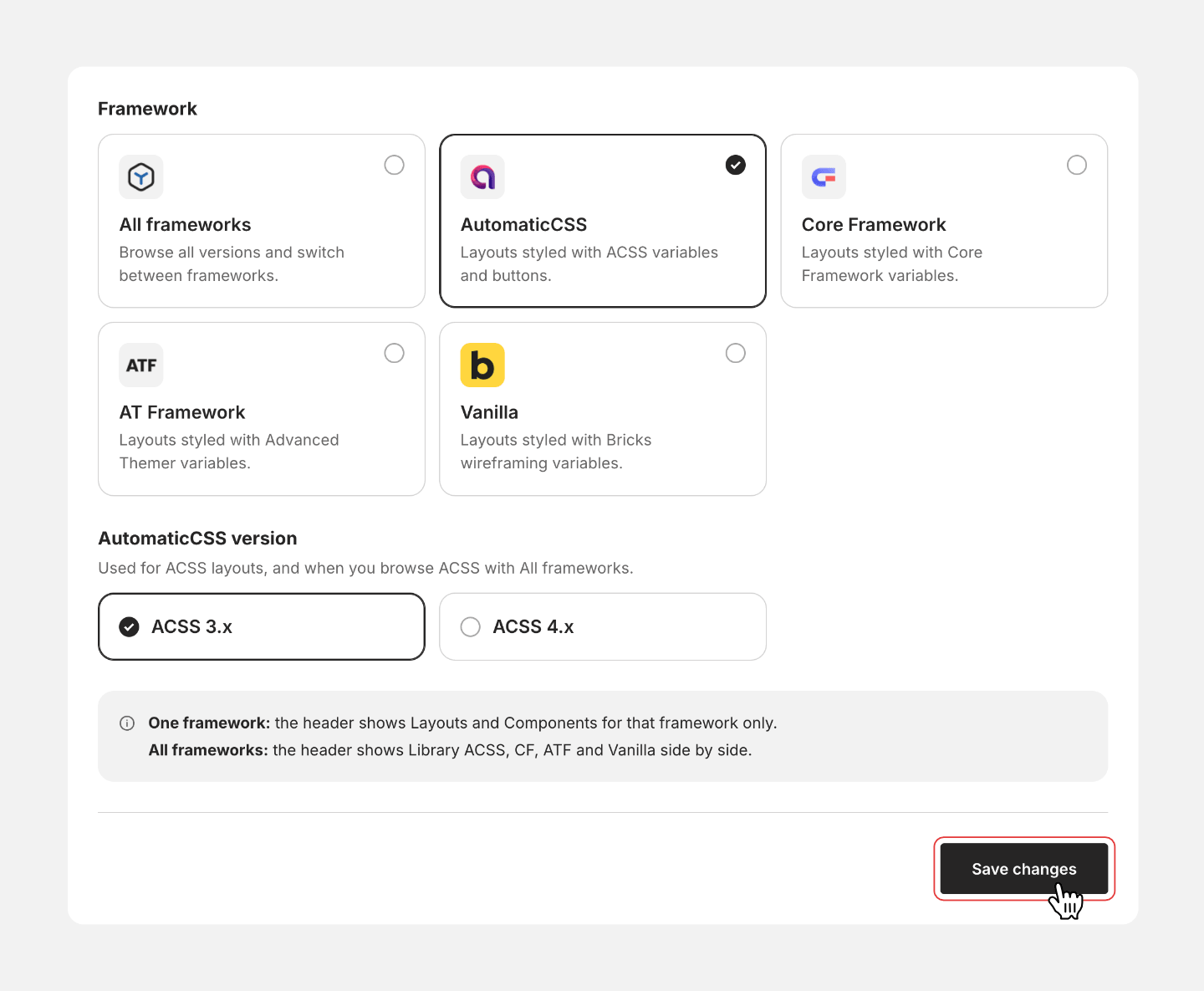
Your next request can ask the assistant to use your saved preference.
Example prompt
Use the Brixies MCP tools to check my saved framework preference, then find a hero and services section for a dental clinic. Show me your proposed selection before preparing the result.
If you change your preference during an existing chat, tell your assistant to check it again before continuing.
Choose your ACSS version
When using AutomaticCSS, select the version that matches your destination site.
ACSS 3 and ACSS 4 are separate version choices. Confirm the version before preparing your layouts.
Example prompt
Use Brixies MCP to check my framework preference and ACSS version. Tell me which version will be used before preparing any layouts.
If another framework is selected, a previously saved ACSS version may still exist in your account. It does not apply to layouts from that other framework.
For example, selecting AT Framework does not make your layouts use ACSS simply because an ACSS version was saved earlier.
Use All frameworks
Choose All frameworks if you work with different frameworks and prefer to choose one for each task.
The same layouts are available across frameworks. Your choice determines which framework version of a layout is used.
Tell your assistant which framework your destination site uses. For AutomaticCSS, also specify the ACSS version.
If you have not specified a framework, your assistant should ask before preparing a copy link, delivering JSON or importing layouts.
All frameworks does not combine frameworks. Choose one framework for each prepared selection.
Example prompt
My account preference is All frameworks. For this project, use Core Framework. Find a hero and services section for a dental clinic and show me your proposed selection before preparing the result.
Override your preference for one task
Name the framework explicitly when a project needs something different from your saved default.
For AutomaticCSS, include the version.
Example prompt
For this task, use AutomaticCSS 4 instead of my saved framework preference. Find a hero and pricing section from Brixies. Keep my account preference unchanged and show me the proposed layouts first.
The explicit choice applies to the task. It does not update your account preference.
To change your default for future tasks, save the new selection in Account → Preferences.
Check the destination site
Before copying or importing layouts:
- Confirm which framework the destination site uses.
- Check the version when applicable.
- Make sure required plugins and framework styles are available.
- Review any compatibility warnings from the assistant.
A framework preference guides selection. It does not guarantee that every layout will work without review on every site.
If a layout belongs to a different framework, ask for an appropriate alternative. Changing the requested framework does not automatically convert that layout between frameworks.
Check what your assistant is using
If a result seems inconsistent with your preference, ask the assistant to retrieve your current settings and identify the framework of the selected layouts.
Example prompt
Use only the connected Brixies MCP tools to check my current framework preference. Tell me which framework the selected layouts belong to and whether they match my preference. Mention the ACSS version only if it applies. Do not prepare or import anything.
The assistant should use the current tool response rather than relying only on earlier messages in the conversation.
If the framework does not match
| Situation | What to do |
|---|---|
| Your assistant uses an old preference | Ask it to retrieve your current Brixies preferences again. |
| You previously requested another framework in the chat | Tell the assistant to return to your saved preference and check it again. |
| All frameworks is selected | Choose one framework before preparing the final selection. |
| A saved ACSS version appears while another framework is selected | Ask the assistant to report only the version that applies to the selected layouts. |
| A selected layout belongs to another framework | Request an alternative from the intended framework. |
| The imported layout looks different | Check the destination framework, required plugins and existing site styles. |
Keep your requests simple
If your saved preference matches the project, include:
Use my saved Brixies framework preference.
If it does not, name the framework and version you want for that task.
Confirming this early helps avoid preparing layouts for the wrong destination.