
What your key does
Your API key identifies your Brixies account when your assistant uses the Brixies MCP tools.
It allows Brixies to check your membership access and read your account preferences.
Generate your key
- Sign in to your Brixies account.
- Open Account -> API key.
- If you do not have an active key, click Generate API key.
- Copy the generated key.
If you already have an active key, use the existing one. You do not need to regenerate it just to connect another supported assistant.
Add it to your assistant’s configuration
On the API key page, find Connect your assistant and select your client.
Follow the instructions for either Paste config or Copy a prompt.
The configuration contains this placeholder:
YOUR_BRIXIES_API_KEY
Replace it with your real key in the local configuration file.
If you use Copy a prompt, the assistant can help prepare the configuration while leaving the placeholder for you to replace privately.
Preserve any other MCP servers already listed in your configuration.
Enter your API key in the local configuration file, not in the chat.
Test the connection
Restart the Brixies MCP connection or fully quit and reopen your assistant. Then start a new chat.
Send this prompt:
Use only the connected Brixies MCP tools to retrieve my account preferences and tell me which framework is currently selected. Only mention the ACSS version if it applies.
Do not open a browser, control my computer, sign in to the website, or make direct API requests outside the MCP tools. Do not ask me to paste my API key into the chat. Do not generate a page.
If the Brixies MCP tools are unavailable or the request fails, stop and explain the connection issue. Do not use another method or rely on previous conversation history.
If your assistant successfully retrieves your preferences through a Brixies tool, the connection is working.
This test only needs Brixies MCP tools. Decline browser or computer-control requests. Approving a Brixies MCP tool is fine.
Understand your key’s details
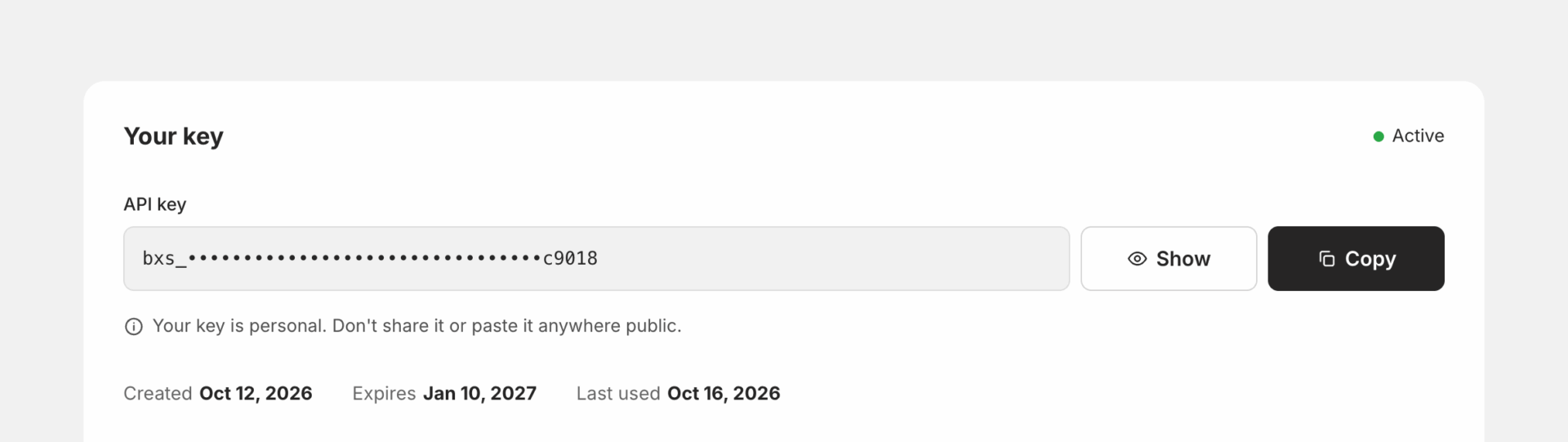
The “Your key” card shows when your key was created, when it expires and when it was last used.
| Field | What it means |
|---|---|
| Created | When the current key was generated. |
| Expires | When your key expires. Generate a new one and update your assistant’s configuration to reconnect. |
| Last used | When usage of your key was last recorded. This does not mean your assistant is currently connected. |
Regenerate a key
Regenerating creates a replacement key. After a successful regeneration, the previous key stops working immediately.
Use this if you need to replace your key, including when you believe it may have been exposed.
After regeneration:
- Copy the new key.
- Replace the old key in every assistant configuration that uses it.
- Restart those MCP connections.
- Test the connection again.
Regenerating your key affects every assistant using the previous key.
Revoke a key
Revoking disables the current key.
Any assistant using that key will lose access to Brixies. To connect again, generate a new key, update your local configuration and restart the MCP connection.
Revoking a key does not cancel your Brixies membership.
Keep your key private
- Enter it only in the intended local configuration.
- Do not include it in prompts or public conversations.
- Do not commit configuration files containing it to a Git repository.
- Hide it in screenshots and recordings.
- Never send it to support.
- Replace it if you believe it has been exposed.
Choose your connection guide
Continue with the guide for your assistant:
- Claude Desktop
- Claude Code
- Codex
- Cursor
You can also open Connect your assistant on your API key page for the configuration instructions.