
Before you start
Make sure you have:
- Your assistant connected to Brixies MCP.
- A Brixies account with an active annual plan or lifetime access (LTD).
- Access to the Bricks editor on your destination site.
- The framework and dependencies required by the layouts you choose.
This workflow uses Brixies MCP to generate a link. You open the link and copy the layouts into Bricks yourself.
You do not need the Bricks Builder MCP for this workflow.
Describe what you need
Tell your assistant what you want to build, which sections to include and the order they should appear in.
You can request a single layout or a selection of layouts for a page.
Example prompt
Find Brixies layouts for a dental clinic landing page using my framework preference. Include a hero, services, testimonials and a contact section, in that order. Show me your proposed selection before generating a copy link.
Your assistant searches the existing Brixies library. The available results depend on your request and the layouts in the library.
Review the proposed layouts
Before asking for the link:
- Review the selected layouts.
- Check that they use the framework you want.
- Confirm the section order.
- Ask for alternatives if a layout does not fit your page.
Your assistant uses your saved framework preference unless you explicitly request another framework for the task.
If your preference is All frameworks, choose one framework for the final selection. A copy link cannot combine layouts from different frameworks into one page.
Choosing another framework for a task does not change your saved account preference.
Confirm class names
Your assistant may propose names for the layouts’ BEM classes before generating the link.
You can keep the original names or approve more descriptive names for your project.
For example, a hero layout could use dental-hero as its block name.
- Review any proposed class names.
- Confirm the names you want, or ask to keep the originals.
- Ask your assistant to generate the copy link.
Renaming classes does not rewrite the layout’s headings, paragraphs or button labels. For this workflow, you can edit the content in Bricks after pasting the layouts.
Generate the link
Once you are happy with the selection, send:
Prompt
Generate a Brixies copy link for the approved layouts, preserving the confirmed order and class names. Do not deliver the layout JSON in the chat or import anything into my site.
Your assistant returns a clickable Brixies link.
The full layout JSON stays out of the conversation, which generally reduces AI token usage.
A link is not a published page. You still need to open it, copy the layouts and paste them into your destination site.
Open the link and copy
- Open the link returned by your assistant.
- Sign in to the Brixies account that owns the link, if prompted.
- Review the layouts and framework shown.
- Click Copy all.
- Wait for the copy confirmation before switching to Bricks.
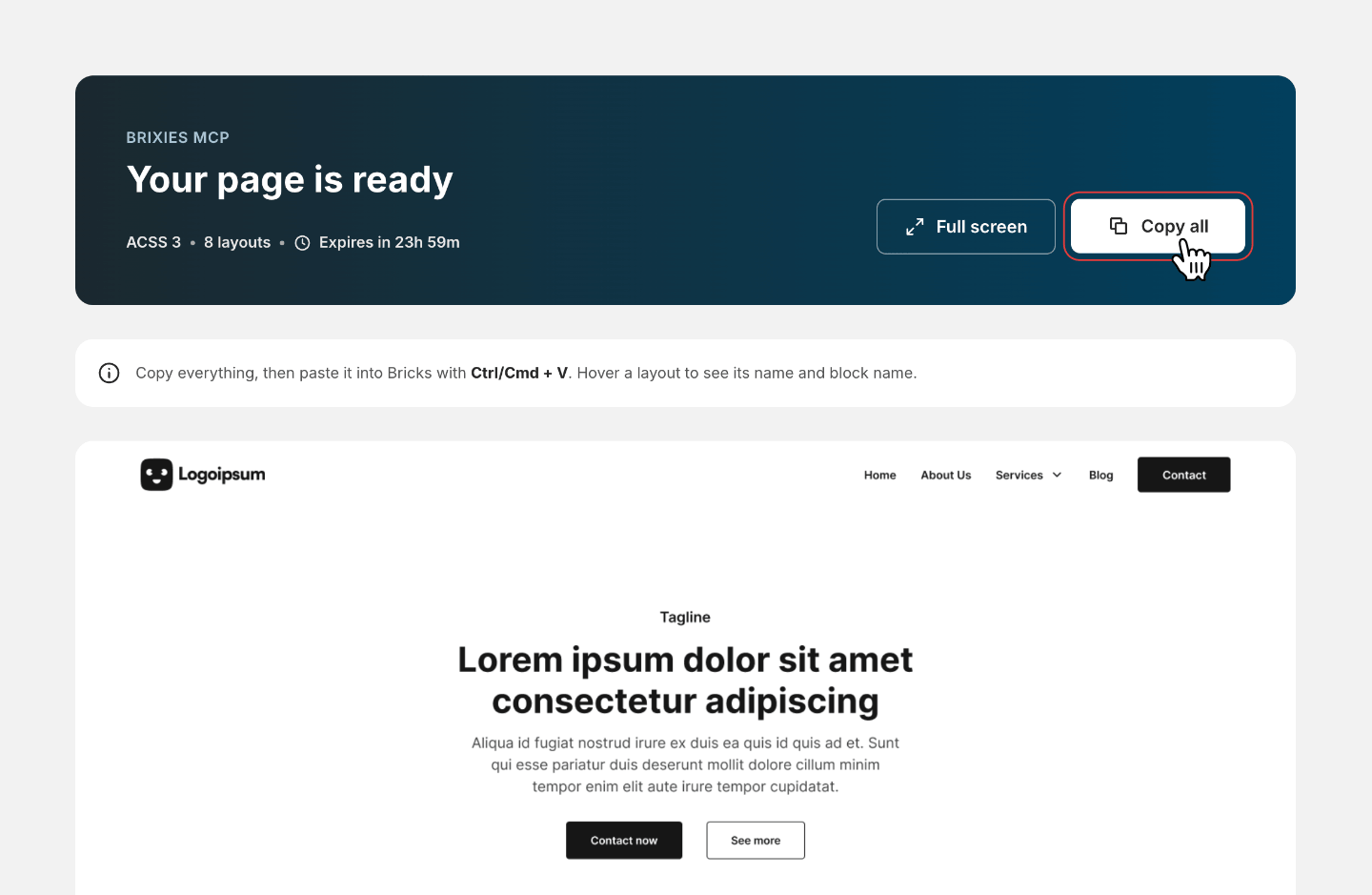
If copying reports an error, follow the message shown. Do not assume the layouts were copied successfully just because the link opened.
You can also find your links in Account -> Generated pages.
Paste into Bricks
- Open the destination page in the Bricks editor.
- Select where you want to insert the layouts.
- Press
Cmd+Von macOS orCtrl+Von Windows. - Check that the sections appear in the expected order.
- Edit the text, images and links for your project.
- Review the responsive layout and frontend before publishing.
Make sure the destination site has the framework and any plugins required by the selected layouts.
Review before publishing. Copying layouts does not confirm that their content, dependencies or interactions are ready for your site.
Request a different selection
If you want to change the selection before copying, continue in the same chat and describe the change.
Example prompt
Replace the services section with a simpler Brixies layout from the same framework. Keep the other sections and their order. Show me the replacement before generating a new copy link.
Treat each generated link as a separate selection. Use the new link returned after your changes are confirmed.
Link expiry
Copy links are temporary. Check the expiry shown on the link page or in Generated pages.
If a link expires before you copy the layouts, ask your assistant to generate a new one.
An expired link does not remove layouts you have already pasted and saved on your own site.
If something does not work
| Problem | What to check |
|---|---|
| The link asks you to sign in | Use the Brixies account associated with the API key that generated the link. |
| The link has expired | Ask your assistant to generate a new copy link. |
| Copying fails | Read the error shown and confirm that the page reports a successful copy before pasting. |
| Nothing appears when you paste | Confirm that copying succeeded and that you are pasting inside the Bricks editor. |
| The layouts look different on your site | Check the selected framework, required plugins and existing site styles. |
If you need support, share the error message and the steps that led to it. Do not share your API key.