
Before you start
Make sure you have:
- Claude Desktop installed on your computer.
- Node.js 22 or later and a working
npxcommand. - A Brixies account with an active annual plan or lifetime access (LTD).
- An active Brixies API key.
See Requirements if you still need to prepare your computer, or Get your API key to generate your key.
Brixies MCP runs locally on your computer and connects to your Brixies account over the internet.
Copy your configuration
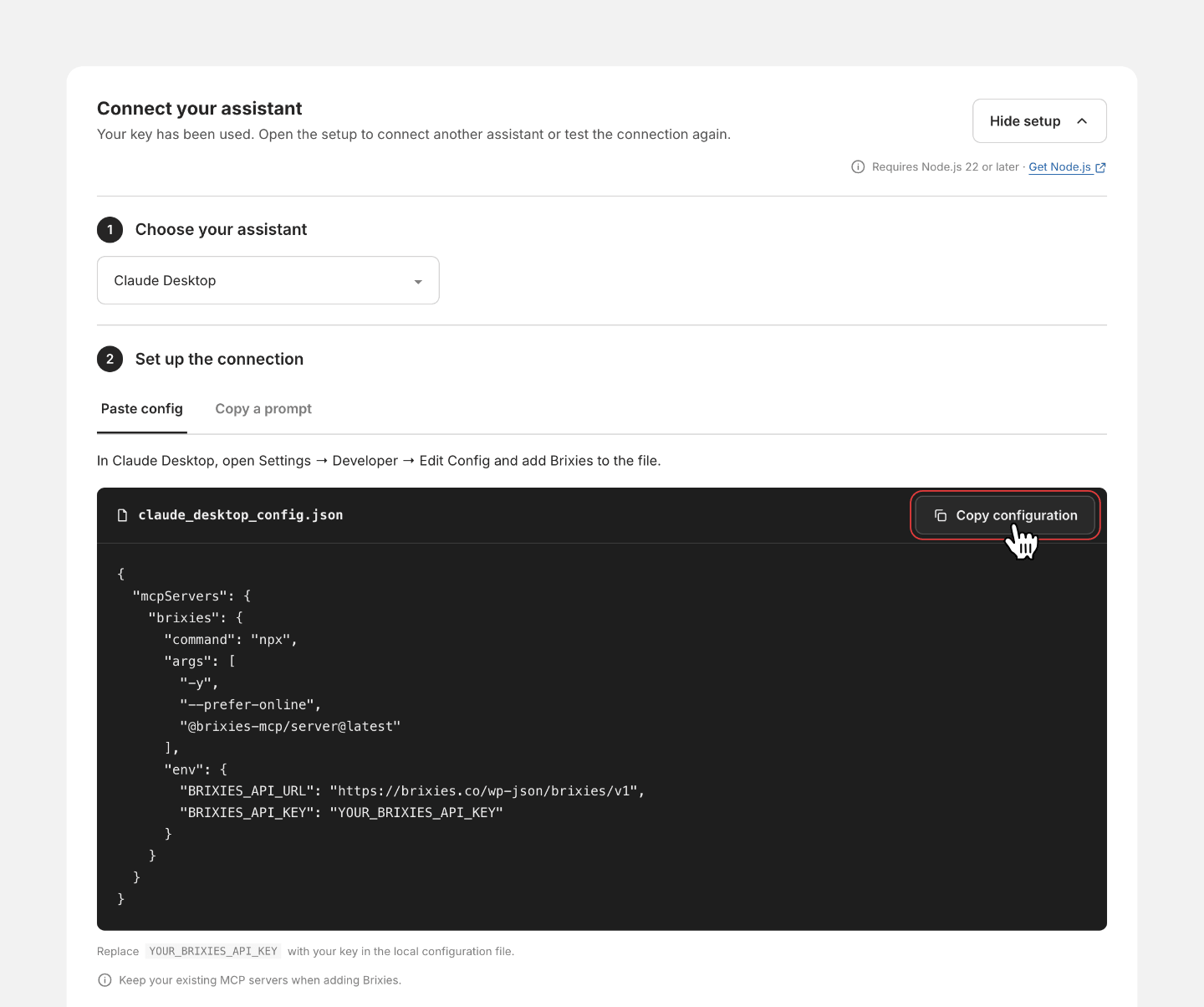
- Open Account → API key.
- Find Connect your assistant. If the section is collapsed, click Show setup.
- Select Claude Desktop.
- Choose Paste config.
- Click Copy configuration.
The configuration includes the package command and the Brixies API URL. Your key is represented by the placeholder YOUR_BRIXIES_API_KEY.
Add Brixies to Claude Desktop
- Open Claude Desktop’s application Settings.
- Go to Developer.
- Click Edit Config to locate
claude_desktop_config.json. - Open the file in a text editor.
You do not need to find a hidden folder manually. Use Edit Config to access the configuration file. If it opens a folder, open claude_desktop_config.json inside it.
If the file is empty, paste the configuration you copied.
If it already contains MCP servers, add the brixies entry inside the existing mcpServers object. Keep the other entries and settings.
Keep your existing configuration. Do not replace the whole file if you already use other MCP servers.
Replace YOUR_BRIXIES_API_KEY with your actual key, keeping the surrounding quotation marks. Save the file.
Need help editing the file?
You can use Copy a prompt in the Brixies setup section to ask for help preparing the configuration.
The prompt leaves your API key as a placeholder. If your assistant cannot edit local files, ask it to explain the changes so you can make them yourself.
Restart Claude Desktop
Fully quit Claude Desktop, then reopen it. Closing the chat window alone may leave the application running.
Start a new chat after reopening the application.
The first launch may take a little longer while npx downloads the Brixies MCP package. You do not need an npm account or a manual installation of index.js.
Test your connection
Send this prompt in the new chat:
Use only the connected Brixies MCP tools to retrieve my account preferences and tell me which framework is currently selected. Only mention the ACSS version if it applies.
Do not open a browser, control my computer, sign in to the website, or make direct API requests outside the MCP tools. Do not ask me to paste my API key into the chat. Do not generate a page.
If the Brixies MCP tools are unavailable or the request fails, stop and explain the connection issue. Do not use another method or rely on previous conversation history.
If Claude asks for permission to use a Brixies MCP tool, review and approve that tool request.
The connection is working when Claude retrieves your preferences through a Brixies MCP tool and reports your selected framework.
This test only needs Brixies MCP tools. Decline browser or computer-control requests. Approving a Brixies MCP tool is fine.
A reply based only on earlier conversation history does not verify the connection.
If the connection does not work
| Problem | What to check |
|---|---|
| Brixies tools are unavailable | Confirm that you saved the configuration and fully restarted Claude Desktop. |
| Claude reports a configuration error | Check the JSON syntax, including quotation marks, commas and braces. |
| The MCP process cannot start | Check that Node.js 22 or later is installed and that npx --version works in your terminal. |
| Your key is rejected | Make sure you replaced the placeholder with your current active key. If you regenerated it, update the configuration. |
| Brixies reports a membership issue | Check your access in Account → Billing. |
If you need support, share the error message with your API key and personal information removed.
You’re connected
You can now ask Claude to search the Brixies library and help you choose layouts.
To start with the copy-link workflow, try:
Example prompt
Find Brixies layouts for a dental clinic landing page using my framework preference. Include a hero, services, testimonials and a contact section. Show me your proposed selection before generating a copy link.