
Before you start
Make sure you have:
- Your assistant connected to Brixies MCP.
- A Brixies account with an active annual plan or lifetime access (LTD).
- Access to the Bricks editor on your destination site.
- The framework and dependencies required by the layouts you choose.
This workflow delivers the layout JSON in your conversation. You copy the result and paste it into Bricks yourself.
You do not need the Bricks Builder MCP for this workflow.
Describe what you need
Tell your assistant which layouts you want and explicitly ask for JSON in the chat.
Include the section order and any text changes you need.
Example prompt
Find a Brixies hero and services section for a dental clinic using my framework preference. Show me your proposed selection first. After I approve it, deliver the complete Bricks-compatible JSON in this chat. Do not generate a copy link or import anything into my site.
Your assistant searches the existing Brixies library and proposes layouts that match your request.
Review the proposed layouts
- Review the selected layouts.
- Confirm the framework and, where applicable, the ACSS version.
- Check the section order.
- Ask for alternatives if needed.
- Approve the selection before requesting the final JSON.
Your saved framework preference is used unless you explicitly request another framework for the task.
If your preference is All frameworks, choose one framework for the final selection.
Confirm class names
Before delivering the JSON, your assistant asks you to confirm the layouts’ BEM block names.
You can keep the original names or approve names that describe their role in your project.
For example:
| Section | Example block name |
|---|---|
| Hero | dental-hero |
| Services | dental-services |
- Review the original names and proposed replacements.
- Confirm the names you want.
- Let the assistant retrieve the final JSON using those names.
Class names and content are separate. Renaming a block does not change its headings, paragraphs or button labels.
Request text changes
You can ask your assistant to adapt specific text before delivering the final JSON.
Be clear about which section and text you want to change. Providing the exact replacement text helps avoid ambiguity.
Example prompt
In the approved hero layout, change the heading to “Dental care for the whole family” and the main button label to “Book an appointment”. Keep the existing links, layout structure, classes, styles and interactions unchanged. Deliver the complete updated JSON.
If you do not request text changes, the assistant should preserve the original content.
This guide covers text customization. Changes to colors, spacing, structure or behavior require separate instructions and additional review.
Receive the complete JSON
After confirming the layouts, class names and any text changes:
- Ask for the complete Bricks-compatible JSON.
- For multiple sections, request one combined JSON block in the confirmed order.
- Wait until the assistant finishes its response.
- Check that it has not reported truncation or an incomplete result.
Example prompt
Deliver the approved layouts as one complete Bricks-compatible JSON block, in the confirmed order and with the confirmed class names and text changes. Do not shorten the JSON, replace content with placeholders or split the result across multiple messages. If you cannot deliver it completely, explain the limitation.
Large results may exceed your assistant’s response limits. If that happens, request fewer sections at a time or use the copy-link workflow.
Use complete output. Do not paste JSON that contains omitted sections, explanatory comments or placeholders such as “rest of the layout”.
Copy and paste into Bricks
- Use the JSON code block’s Copy button, if your assistant provides one.
- Copy only the JSON, without surrounding explanations or Markdown fences.
- Open the destination page in the Bricks editor.
- Select where you want to insert the layouts.
- Press
Cmd+Von macOS orCtrl+Von Windows. - Review the imported sections before saving.
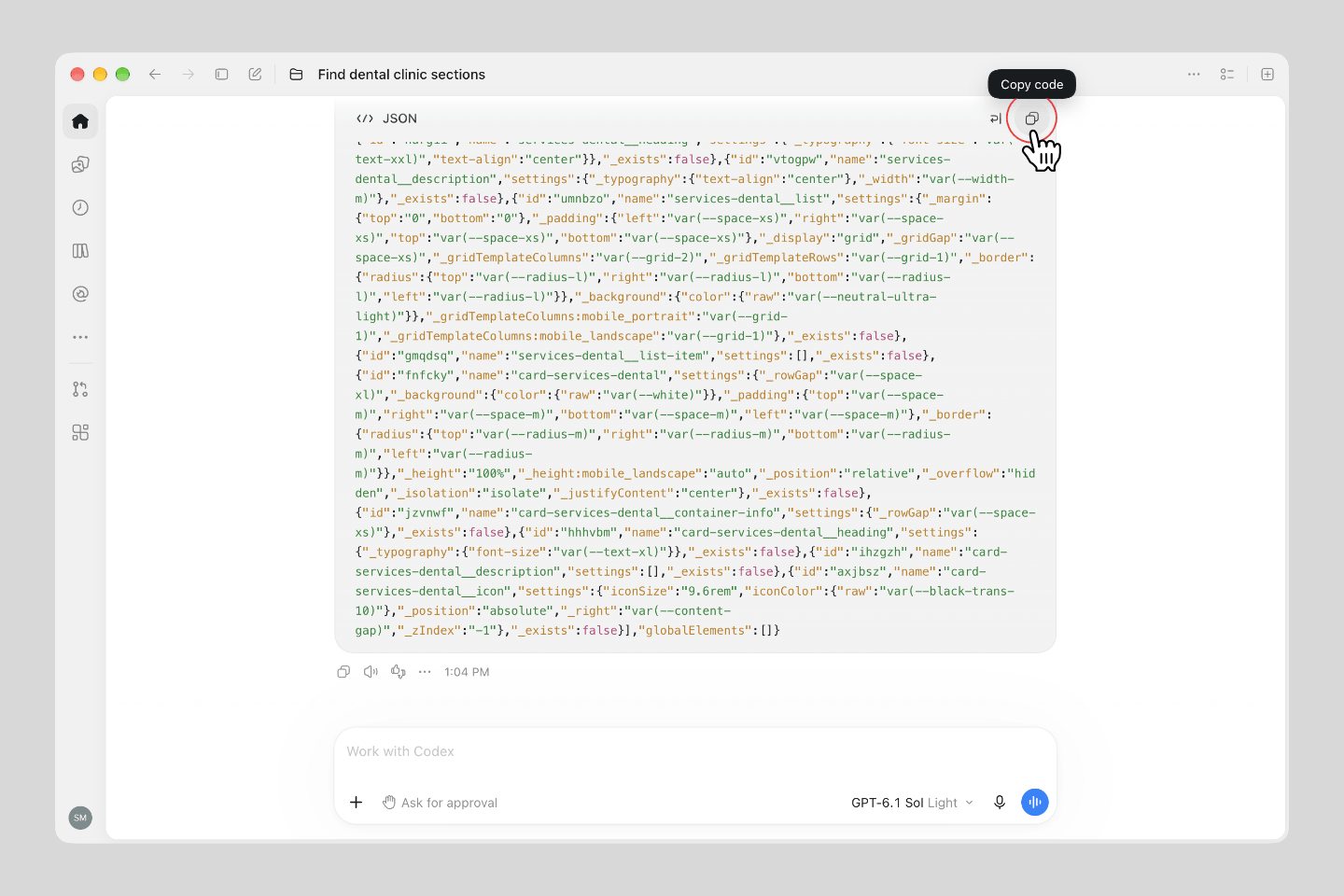
Keep the JSON’s formatting and quotation marks intact. Avoid passing it through a rich-text editor that may alter the content.
Review the result
After pasting, check:
- The sections appear in the correct order.
- The requested text changes are present.
- The confirmed class names are applied.
- Buttons and links point to the intended destinations.
- Images and placeholder content are appropriate for your site.
- The layouts display correctly on desktop, tablet and mobile.
- Required frameworks and plugins are available.
Check interactions on the frontend before publishing.
Understand token usage
This workflow brings the layout JSON into the conversation and returns it in the assistant’s response.
Larger layouts, multiple sections and repeated revisions can increase AI token usage.
To keep the process focused:
- Confirm the selection before requesting the final JSON.
- Provide text changes together when possible.
- Request only the sections you need.
- Use a copy link when you do not need the JSON in the chat.
AI token usage is separate from your Brixies usage limits.
If something does not work
| Problem | What to check |
|---|---|
| The JSON response is incomplete | Request fewer sections or switch to the copy-link workflow. Do not use a partial result. |
| Bricks does not accept the pasted content | Make sure you copied only the complete JSON and that you are pasting inside the Bricks editor. |
| Requested text changes are missing | Identify the section and provide the exact text to replace. Ask for the complete corrected JSON. |
| The class names are incorrect | Ask the assistant to retrieve the layouts again with the confirmed BEM names instead of manually replacing names throughout the JSON. |
| The layouts look different on your site | Check the framework, required plugins and existing site styles. |
If you need support, share the error message and describe what you requested. Do not share your API key.
Prefer a copy link?
If you do not need to work with JSON in the conversation, use Generate a copy link.
Your assistant returns a link where you can copy the layouts into Bricks, keeping the full JSON out of the chat.