
Before you start
Make sure you have:
- Codex installed and working on your computer.
- Node.js 22 or later and a working
npxcommand. - A Brixies account with an active annual plan or lifetime access (LTD).
- An active Brixies API key.
See Requirements if you still need to prepare your computer, or Get your API key to generate your key.
This guide connects Brixies to Codex running locally on your computer.
Copy your configuration
- Open Account -> API key.
- Find Connect your assistant. If the section is collapsed, click Show setup.
- Select Codex.
- Choose Paste config.
- Click Copy configuration.
The configuration includes the package command and the Brixies API URL. Your key is represented by the placeholder YOUR_BRIXIES_API_KEY.
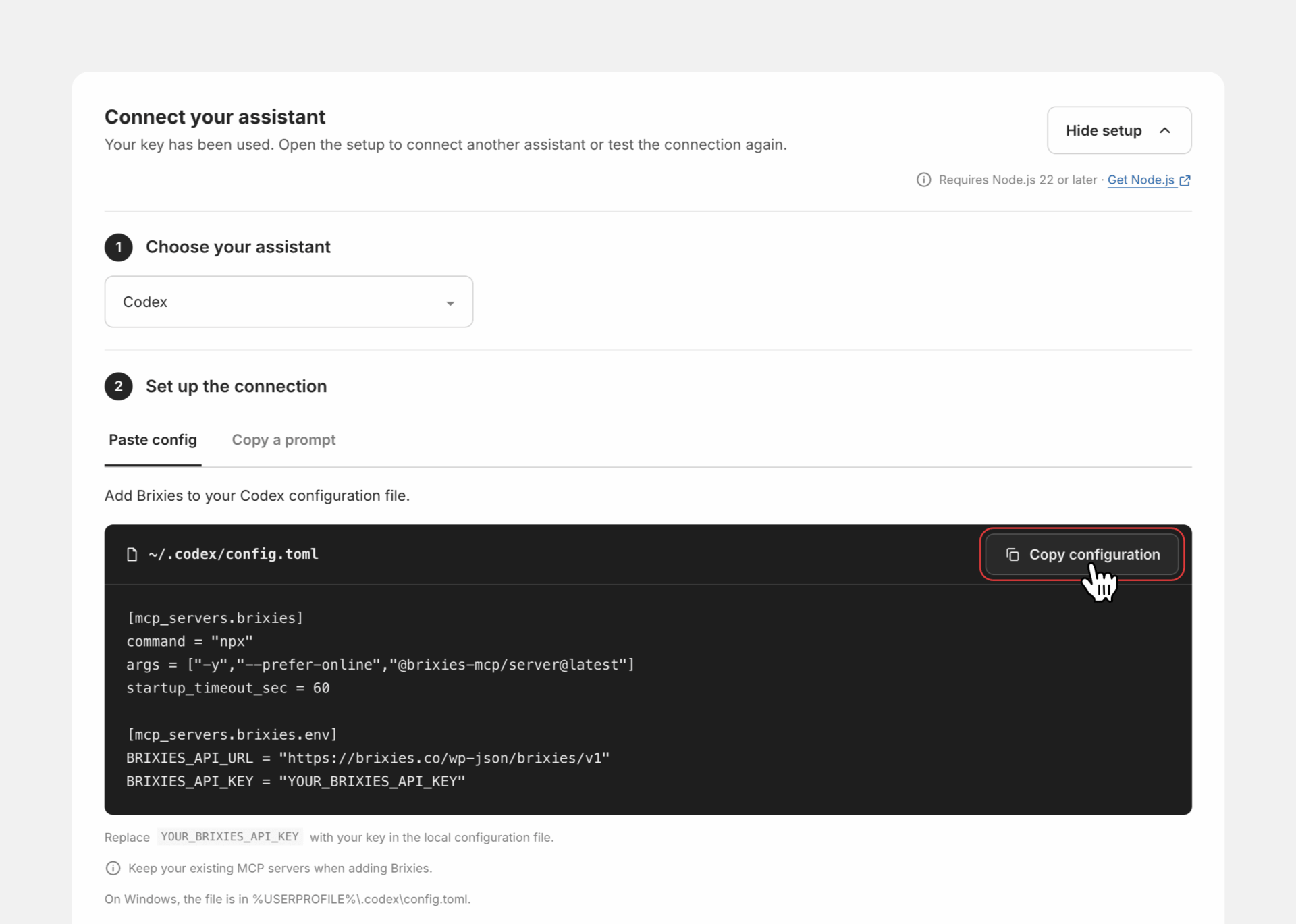
Codex uses TOML configuration. Copy the version shown for Codex.
Add Brixies to Codex
- Open your personal Codex configuration file in a text editor. Its default location is listed below.
- Paste the copied Brixies configuration at the end of the file, preserving your existing settings and MCP servers.
- If the file already contains
[mcp_servers.brixies]and[mcp_servers.brixies.env], update those sections instead of adding duplicates. - Replace
YOUR_BRIXIES_API_KEYwith your actual key, keeping the surrounding quotation marks. - Save the file.
Configuration file location
| Operating system | Default location |
|---|---|
| macOS or Linux | ~/.codex/config.toml |
| Windows | %USERPROFILE%.codexconfig.toml |
Find the configuration folder
The .codex folder may be hidden or difficult to locate. You can open it directly using its path.
On macOS:
- Open Finder.
- Press Cmd + Shift + G.
- Enter
~/.codex/and press Return. - Open
config.tomlin a text editor.
To show or hide hidden files in Finder, press Cmd + Shift + . (period).
On Windows:
- Open File Explorer with Windows + E.
- Click the address bar.
- Enter
%USERPROFILE%.codexand press Enter. - Open
config.tomlin a text editor.
If the folder does not exist, launch Codex once and check again. If it is still missing, create the folder and configuration file as described below.
If you use a custom Codex home directory, edit the configuration file in that directory instead.
Need help editing the file?
You can use Copy a prompt in the Brixies setup section to ask Codex to prepare the configuration.
Review the proposed changes and let it leave YOUR_BRIXIES_API_KEY as a placeholder. Then enter your real key directly in the local file.
If Codex cannot edit the file, ask it to explain the changes so you can make them yourself.
Restart Codex
- Save your configuration changes.
- Restart the Codex application or local session you use. If you use an editor extension, restart that extension.
- Open a new chat.
The first launch may take a little longer while npx downloads the Brixies MCP package. You do not need an npm account or a manual installation of index.js.
Check the configuration
If you have the Codex CLI installed, run this command in your terminal:
codex mcp listCheck that brixies appears in the list.
Inside an interactive Codex CLI session, you can also enter:
/mcpThis shows the active MCP servers.
If you use the desktop app without the CLI, continue with the connection test below.
A configured server entry alone does not confirm that Brixies can authenticate your key and retrieve your preferences.
Test your connection
Send this prompt in the new chat:
Use only the connected Brixies MCP tools to retrieve my account preferences and tell me which framework is currently selected. Only mention the ACSS version if it applies.
Do not open a browser, control my computer, sign in to the website, or make direct API requests outside the MCP tools. Do not ask me to paste my API key into the chat. Do not generate a page.
If the Brixies MCP tools are unavailable or the request fails, stop and explain the connection issue. Do not use another method or rely on previous conversation history.
If Codex asks for permission to use a Brixies MCP tool, review and approve that tool request.
The connection is working when Codex retrieves your preferences through a Brixies MCP tool and reports your selected framework.
This test only needs Brixies MCP tools. Decline browser or computer-control requests. Approving a Brixies MCP tool is fine.
A reply based only on earlier conversation history does not verify the connection.
If the connection does not work
| Problem | What to check |
|---|---|
| Brixies tools are unavailable | Confirm that you edited the configuration used by your local Codex client, saved the file and restarted Codex. |
| Codex reports a configuration error | Check the TOML syntax and make sure the Brixies sections are not duplicated. |
| The MCP process cannot start | Check that Node.js 22 or later is installed and that npx --version works in your terminal. |
| Your key is rejected | Make sure you replaced the placeholder with your current active key. If you regenerated it, update the configuration. |
| Brixies reports a membership issue | Check your plan in Account -> Billing. |
If you need support, share the error message with your API key and personal information removed.
You’re connected
You can now ask Codex to search the Brixies library and help you choose layouts.
To start with the copy-link workflow, try:
Example prompt
Find Brixies layouts for a dental clinic landing page using my framework preference. Include a hero, services, testimonials and a contact section. Show me your proposed selection before generating a copy link.